
By mynewclover March 17, 2026
Rush hour in retail is when efficiency truly matters. Long queues can be frustrating for customers and can be challenging for the employees as they must serve the customers efficiently without any mistakes. A slow checkout experience can cause the store to lose revenue because customers might not be willing to wait and may end up leaving the store without making any purchases.
The Clover POS system is designed to make the checkout experience efficient, but many retail stores end up using only a fraction of the features that the system has to offer. Learning the shortcuts that the system has to offer can be incredibly beneficial as it can speed up the process and make the experience less stressful during rush hour.
Table of Contents
Understanding the Clover POS Workflow
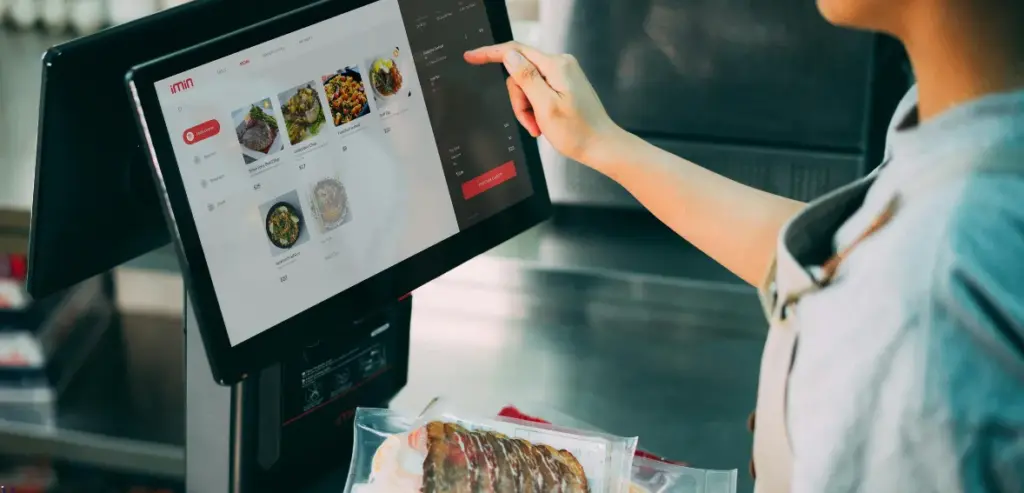
To understand how to take shortcuts, it is important to first understand how Clover POS systems are designed to process a regular transaction. In a regular transaction, one must select items, confirm the quantity of the items, apply discounts where necessary, pay for the items, and finally receive a receipt for the items one has purchased.
Each of these processes can be streamlined using Clover’s built-in tools. When one must go through all the processes of the Clover system, it is evident that it will take longer than it should for one to process a transaction. Using shortcuts and tools in Clover allows one to avoid going through all the processes in the system and thus helps one process transactions more efficiently.
Businesses with customized Clover dashboards can process transactions in a significantly shorter time. This is because one can easily find the tools they need in easily accessible locations and thus process transactions more efficiently.
Shortcut 1 – Use Quick Item Buttons
One of the best ways to speed up the checkout process is through the use of the quick item buttons offered by Clover. The buttons allow frequently purchased items to be placed on the screen at the time of checkout, allowing the user to bypass the need to search through the product categories and type in the product names.
A few seconds saved during peak hours can make a huge difference in the number of people in the line. Businesses use the quick buttons for the best-selling items, such as drinks and snacks. This allows the user to click the item instantly instead of going through several screens. The use of the quick item buttons also eliminates the possibility of price errors since the price is already set in the system.
Shortcut 2 – Enable Favorites for Fast Access
Another great feature that can be found in the Clover system is the favorites list, which can be used by employees to save the items they frequently use in one place. This means that the employees do not have to go through the lengthy list of products when they want to perform the functions they frequently use.
This is particularly beneficial in cases where the business has many items, and the search process is taking too long, which can cause frustration when the customers are not being served efficiently. The employees can save the items that sell the most and the functions such as refunds, discounts, and special orders in the favorites list, which can be accessed easily and save the employees from distractions when they need to focus on the customers.
Shortcut 3 – Use Barcode Scanning Efficiently

One of the fastest methods of transacting business is using barcode scanning; however, many businesses are not using it in the best possible way. Clover POS allows for fast scanning of products using a barcode scanner, which instantly adds the scanned item to the order screen.
If the barcode scanner is correctly placed and products are labeled correctly, it can significantly speed up the checkout process. It is essential for employees to be able to scan products smoothly without scanning the same item repeatedly, which can cause a delay in the process.
For businesses with many products in their inventory, barcode scanning can save time as they will not need to search for products individually and will be able to keep their inventory accurate as it will be updated with each scanned item. Using barcode scanning can significantly speed up the checkout process and reduce the chances of errors in transactions.
Shortcut 4 – Use Pre-Configured Order Categories
Organizing products in logical categories can also help save valuable time during busy checkout hours. Clover provides the option for merchants to organize products in logical categories such as beverages, snacks, accessories, and services.
If the products are well-organized in logical categories, the employees can easily locate the products without having to scroll through the screen endlessly. During busy hours, this saves time as the employees do not hesitate and move from one step to the next.
Businesses need to ensure that the popular categories are placed at the top of the menu for faster navigation. This simple change in the way products are organized makes the checkout process more efficient and eliminates any confusion for the employees. If the interface at the register is well-mapped in the minds of the employees, the checkout process is faster.
Shortcut 5 – Enable Quick Payment Buttons

Payment processing is sometimes the final stage of the checkout process. However, this stage can sometimes be time-consuming as the employee has to go through several screens.
A merchant can set up quick payment buttons for the usual types of payments, such as credit cards, debit cards, or cash. This speeds up the checkout time as the number of clicks is reduced. If the customer is ready to pay, the employee can click on the type of payment immediately without having to look for it.
The quick payment buttons are very important during rush hours when the time is of the essence. They are also very accurate as they ensure the employee clicks on the right type of payment. This speeds up the checkout time as the employee does not have to wait until the customer is ready to pay.
Shortcut 6 – Save Custom Orders as Templates
For businesses that frequently process similar orders, Clover offers the option to save custom order templates. This way, employees do not have to keep adding the same items to order. They can simply select the saved template that has the required items and quantity.
This is particularly useful for restaurants and service businesses, as customers often ask for the same items in their orders. Using templates can save businesses a lot of time, especially during peak hours when the queue is long and the orders are complex. The template will be displayed on the screen as soon as the employee selects it, and the payment can be made accordingly.
Shortcut 7 – Use Order Modifiers Efficiently
Using the modifier feature allows the business to easily customize the product without the need to add different products for different variations. For instance, the café can have different types of milk, flavors, or even the size of the drink. Instead of adding different products for different variations, the employees can simply add the product and the appropriate modifier.
This can be easily achieved with the help of Clover. If the modifier is correctly set up, the employees can easily make changes with just a few clicks. This will help prevent delays as the employees will not have to look for different product variations. This will help the employees to efficiently utilize the modifier feature and make the process easier for customers.
Shortcut 8 – Train Staff on Quick Receipt Options
The receipt is a vital part of the payment process, but making unnecessary receipts can cause a delay in payment. Clover helps businesses provide digital receipts via email or SMS, which can be more efficient than making physical receipts.
Employees need to be aware of how to choose the fastest receipt option based on the customer’s choice. Some customers might want digital receipts, while others might want physical receipts.
Allowing employees to change between receipt options quickly can help avoid delays in payment. Making digital receipts can help minimize waste and make it easier for businesses to keep records. By being aware of how to handle receipt options effectively, payments can be made more efficiently for customers.
Shortcut 9 – Use Employee Login Shortcuts
Additionally, the login process may cause the checkout line to slow down as employees may be required to log in multiple times using passwords. However, Clover has provided faster ways to log in using a PIN code or an employee card, which can be used to log in faster.
This way, there is minimal downtime between transactions, especially when multiple employees are using the same register during peak hours. This is beneficial as it ensures that every transaction is linked to the employee making the sale, hence promoting accountability.
In addition, it ensures that the transactions are processed efficiently, especially during peak hours when any downtime between transactions can cause significant problems.
Shortcut 10 – Use Order Review Before Payment
However, before finalizing the payment, Clover offers a quick review of the order for the employee, which helps in ensuring accuracy in the order. Although this might seem like a minor step, it helps in avoiding errors, which might cause a delay in the line later on.
For example, if the item is incorrectly ordered and the customer realizes it after the payment, it might need to be changed, which is a very time-consuming process. It is essential to encourage the employees to take a quick look at the order summary to ensure accuracy in the order. This is the final shortcut offered by Clover in ensuring the smooth and efficient flow of transactions, especially during rush hour.
Improving Workflow Beyond Shortcuts
Though the use of shortcuts makes the process faster, the overall design of the workflow also plays a vital role in the efficiency of the checkout process. Businesses need to consider the physical arrangement of the registers, the way the staff move within the workspace, and the way the customers approach the counter.
Making small changes, such as the convenient placement of the barcode reader and the logical arrangement of the products, can be added advantages in addition to the use of the shortcuts provided by the Clover system. A well-designed workflow allows the staff members to move efficiently and focus on the checkout process. It makes the overall checkout process smooth and professional.
Conclusion
Clover POS systems offer a variety of solutions intended to assist companies in effectively managing large customer volumes. Even little increases in checkout speed can have a big impact on overall sales and customer happiness during peak hours.
A quicker transaction procedure is facilitated by quick item buttons, barcode scanning, payment shortcuts, and well-organized workflows. Customers wait less time, and lines run more efficiently when staff members are aware of and often utilize these shortcuts.
Employee stress is also decreased by efficient checkout, freeing them up to concentrate on improving customer service. Businesses may turn hectic checkout times into efficient operations that benefit both clients and staff by utilizing Clover’s built-in capabilities and streamlining everyday routines.
FAQs
How quickly can transactions be processed using Clover POS?
The checkout process is greatly accelerated by using quick item buttons, barcode scanning, and quick payment shortcuts.
Is it possible to modify Clover POS to expedite checkout?
Yes. To expedite the checkout process, businesses can personalize categories, favorites, quick buttons, and payment methods.
How does Clover checkout speed benefit from barcode scanning?
Barcode scanning speeds up transactions by adding products to orders instantaneously and doing away with manual searches.
Do digital receipts arrive more quickly than paper ones?
Yes. During checkout, email or SMS receipts frequently process more quickly and minimize printing delays.
Why is employee training crucial to the effectiveness of Clover POS?
Workers can execute transactions more quickly and with fewer errors during busy times if they are familiar with Clover shortcuts and workflow tools.